Cinematic color from log in a minute
A PowerGrade pack (.drx): grades for the log profiles of the main cameras — Sony, Canon, Nikon, Fuji, DJI and iPhone. A clean node tree, one click per clip.
.drx files. The link arrives right after the form.
A flat log frame turns into cinema
One PowerGrade node instead of a hand-built grade. Drag the slider to see the difference on a real frame.
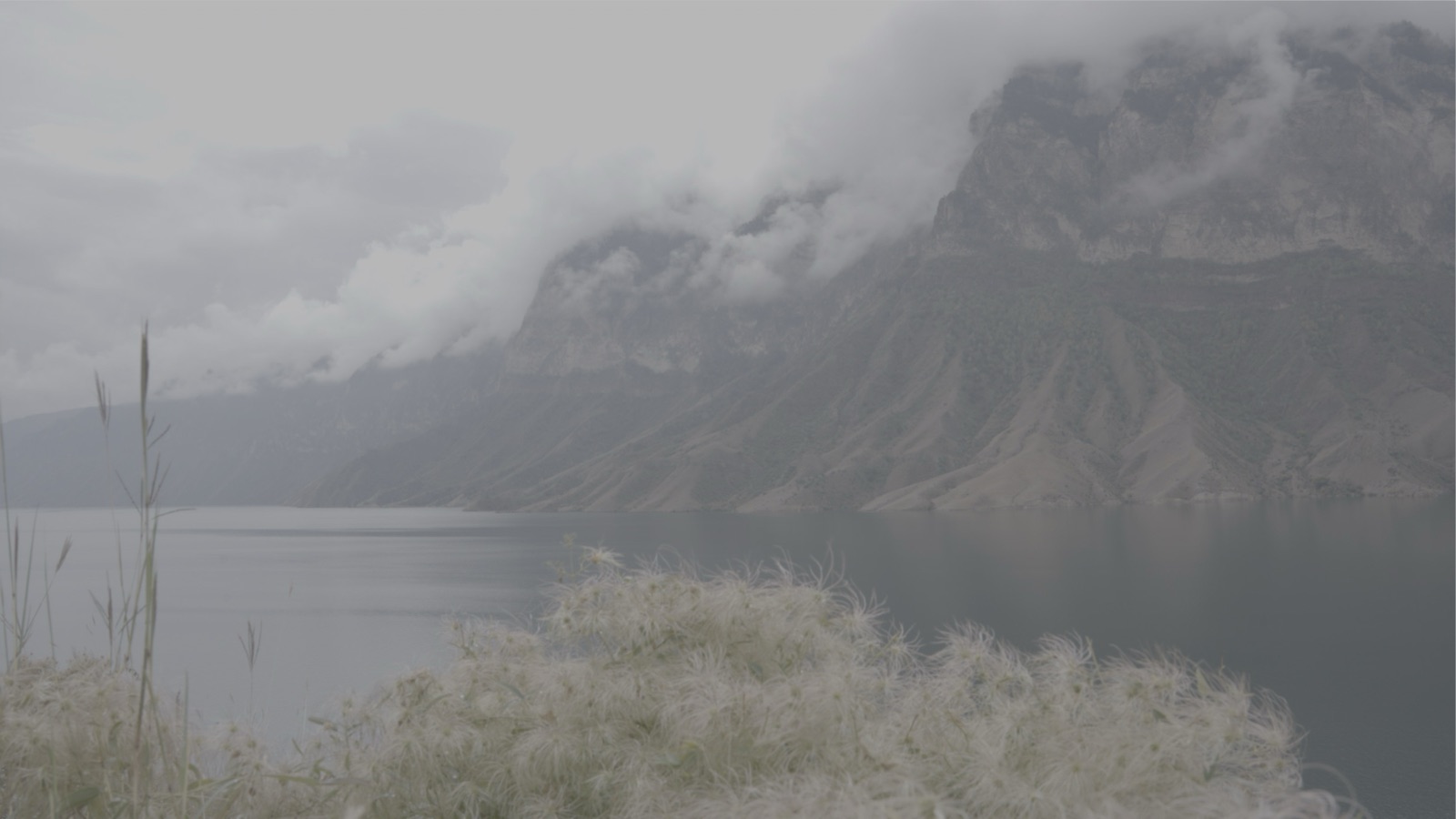
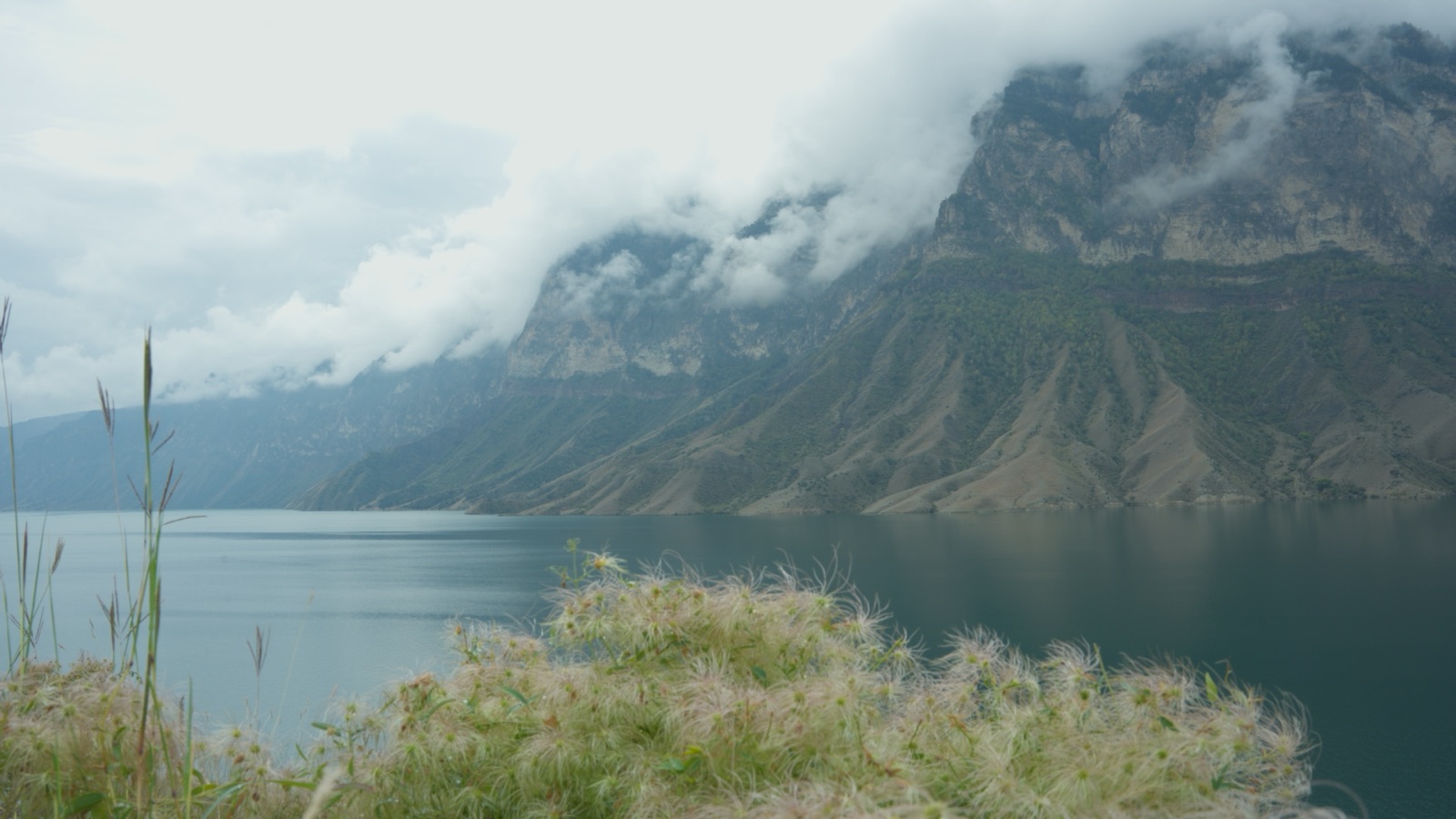
Drag to compare
Log and grade in motion
Short real-frame examples: the flat log and the same frame with the PowerGrade applied.
- Sony · S-Log3
- Nikon · N-Log
- iPhone · Apple Log
Everything you need for a film look
- 01
PowerGrade for Resolve
A .drx pack with a ready node tree: import into Color page → PowerGrades and apply to a clip in one click.
- 02
Every camera
Sony S-Log3, Canon C-Log2, Nikon N-Log, Fuji F-Log2, DJI D-Log and iPhone Apple Log. A separate grade for each camera’s log.
- 03
Clean skin tones
Skin stays natural — the grade is tuned for real shooting conditions.
- 04
One-minute setup
A short guide inside the archive plus a video walkthrough of importing a PowerGrade on the channel.
Setup and nodes — step by step
A PowerGrade is a node tree in DaVinci Resolve. Importing takes a minute, then the grade applies in one click.
How to import
- 01
Download and unzip
Keep the .drx files together in one folder — don’t split them.
- 02
Open the Color page
In DaVinci Resolve go to the Color tab and open the Gallery panel.
- 03
The PowerGrade album
In the Gallery panel pick the PowerGrade album — it is available in every project.
- 04
Import the .drx
Right-click an empty area → Import → select the files you need.
- 05
Apply the grade
Middle-click the thumbnail, or right-click → Apply Grade.
What the grade is made of
The node tree overview. A detailed breakdown of every node is in the FAQ folder inside the download.
Some effects (Denoise, Film Grain, Halation, Bloom, Dust) are available only in DaVinci Resolve Studio.
- Node tree overview
Frequently asked questions
Which app does it work in?
A PowerGrade in .drx format is for DaVinci Resolve. Import the file into Color page → PowerGrades and apply it to your clip.
Which cameras does it suit?
The pack includes grades for the main camera logs: Sony (S-Log3), Canon (C-Log2 / Cinema Gamut), Nikon (N-Log / Rec.2020), Fuji (F-Log2), DJI (D-Log) and iPhone (Apple Log).
How do I install the PowerGrade?
In DaVinci Resolve open the Color page, click Import in the PowerGrades window and pick the .drx. A detailed guide is in the archive and on video.
Is it free?
Yes, the pack is free after subscribing with your email. You get the download link right after submitting the form.
Do I need the paid DaVinci Resolve Studio?
Not for basic grading, but some effects in the tree (Denoise, Film Grain, Halation, Bloom, Dust) work only in Studio. In the free version the grade still applies — those nodes may be unavailable.
How do I apply the grade to several clips?
Middle-click (or right-click) the PowerGrade thumbnail → Apply Grade. Then you can copy the grade and paste it onto other clips instead of opening every node again.